

How to Convert HEIC to JPG (Open iPhone Photos on Any Device)
M
MegaConvert Team
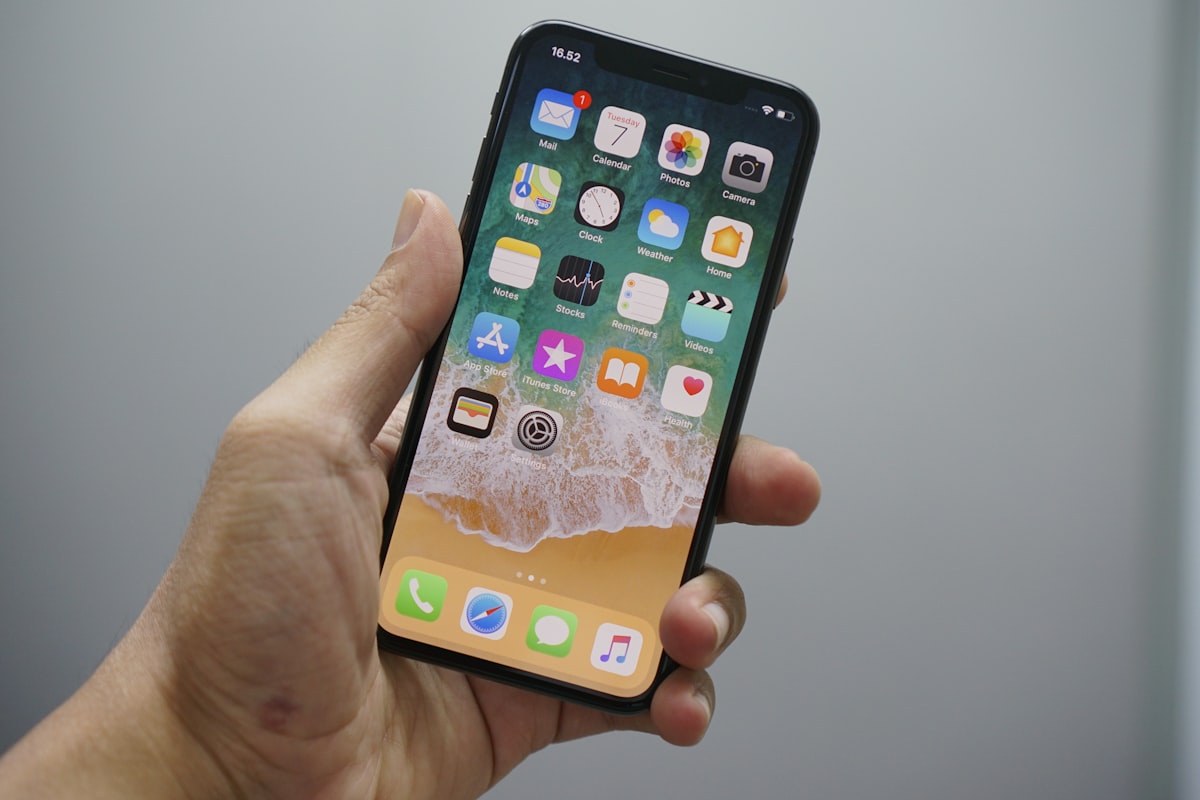
iPhone photos are in HEIC format, which Windows, Android, and most websites can't open. Here's how to fix that in 5 seconds. Upload your file to MegaConvert.io and select JPG — done in seconds, free, no signup.
The Problem
Since iOS 11, iPhones save photos as HEIC — a format that's 50% smaller than JPG but incompatible with most of the non-Apple world. You try to email a photo to someone on Windows, and they can't open it.
Why Convert HEIC to JPG?
- Windows can't open HEIC without installing extensions from the Microsoft Store.
- Android devices don't support HEIC natively.
- Most websites reject HEIC uploads — they want JPG or PNG.
- Print shops and online print services require JPG.
- Social media platforms may not accept HEIC directly.
How to Convert Online
- Go to megaconvert.io/heic-to-jpg.
- Drag and drop your .heic file.
- Download your .jpg file.
No account needed. No watermarks. Files auto-delete after 1 hour for privacy.
Related Conversions
- HEIC to PNG — when you need transparency.
- JPG to WebP — optimize converted photos for web.
- JPG to PDF — create documents from photos.
For Developers: API
curl -X POST https://megaconvert.io/api/v1/convert/sync \
  -H "X-API-Key: YOUR_API_KEY" \
  -F "file=@input.heic" \
  -F "output_format=jpg" \
  -o output.jpg
Free tier: 10 conversions/day. API docs → | SDKs →
#heic
#jpg
#image
#iphone
#apple
Ready to convert your files?
Free online converter supporting 500+ formats. No signup required.
Start Converting